
2022 Update
There’s now a better way to build ACF blocks. See my post on Building ACF Blocks with block.json.
Read Now
The block-based editor in WordPress offers a modern content editing experience that becomes even more powerful with custom blocks.
Core Gutenberg blocks are built with React and JavaScript, and you can build your own Gutenberg blocks with JavaScript as well. If you plan to distribute a block as a public plugin, JavaScript is often the best choice because it keeps the package lean and reduces dependencies.
When building a single site that requires many unique blocks, using a block-building plugin such as Advanced Custom Fields (ACF) can be far more efficient. ACF lets you create blocks quickly using the familiar ACF interface, which is especially helpful for PHP developers who prefer to avoid deep JavaScript development. With ACF, you can build block editors and render them with PHP.
For practical examples of custom ACF blocks used in themes, see the article below.
August 30, 2019
Building a WordPress theme with Gutenberg
A detailed walkthrough of developing custom WordPress themes that include custom blocks, archive pages, and modular templates.
What is Advanced Custom Fields
Advanced Custom Fields is a plugin that adds flexible content editing fields across the WordPress admin. With ACF you can create custom metaboxes, site options, user profile fields, and term metadata to extend the editing experience.
For a broader comparison of ACF and other metabox tools, see the author’s Introduction to Custom Metaboxes. The site also maintains an Advanced Custom Fields category with more ACF-focused articles.
ACF was among the first popular metabox plugins to add native support for building Gutenberg blocks. Other projects are adding compatibility as well, but ACF remains a leading solution for integrating custom fields with blocks.
Creating a block
Building a Gutenberg block with ACF involves three main steps:
- Register the block with PHP
- Build the block editor with the ACF interface
- Describe how the block is rendered using PHP
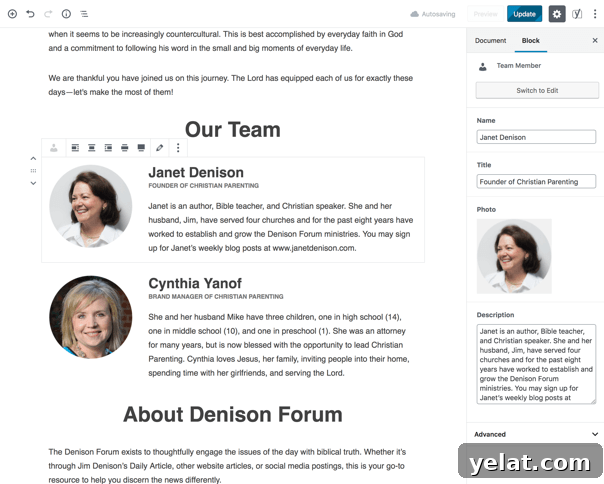
Below is a walkthrough for creating a simple “Team Member” block.

In this example the block’s markup and styles live in the theme for simplicity, but you can also include them in a core functionality plugin.
Register the block
Use acf_register_block_type() to register the custom block. The important parameters are summarized here; consult the ACF documentation for full details. Note: ACF 5.8 or later is required.
/**
 * Register Blocks
 */
function be_register_blocks() {
	if( ! function_exists( 'acf_register_block_type' ) )
		return;

	acf_register_block_type( array(
		'name'				=> 'team-member',
		'title'				=> __( 'Team Member', 'clientname' ),
		'render_template'	=> 'partials/block-team-member.php',
		'category'			=> 'formatting',
		'icon'				=> 'admin-users',
		'mode'				=> 'auto',
		'keywords'			=> array( 'profile', 'user', 'author' )
	));
}
add_action('acf/init', 'be_register_blocks' );
Name
The name must be unique. ACF namespaces it automatically; for example team-member becomes acf/team-member in the database.
Title
The title appears in the Gutenberg block picker.
Render Template
Specify the template file used to render the block. The same file will render on the frontend and provide the preview in the editor. This can be a theme-relative path or a full filesystem path. Alternatively, use the render_callback parameter to specify a PHP function that outputs the block HTML.
Category
The category controls where the block appears in the “Add Block” modal. Core categories include common, formatting, layout, widgets, and embed.
Icon
Provide a Dashicons icon or a custom SVG to represent the block in the inserter.
Mode
The mode controls how the block is presented in the editor. The default “auto” shows the frontend view until you select the block, after which it becomes editable. “Preview” always looks like the frontend and editing happens in the sidebar. The “edit” mode shows fields inline like a metabox. Users can switch modes unless you disable that with ‘supports’ => array( ‘mode’ => false ).
Keywords
You can provide up to three keywords to improve block searchability in the inserter. The block name is always indexed, so you don’t need to repeat it here.
Build the block editor
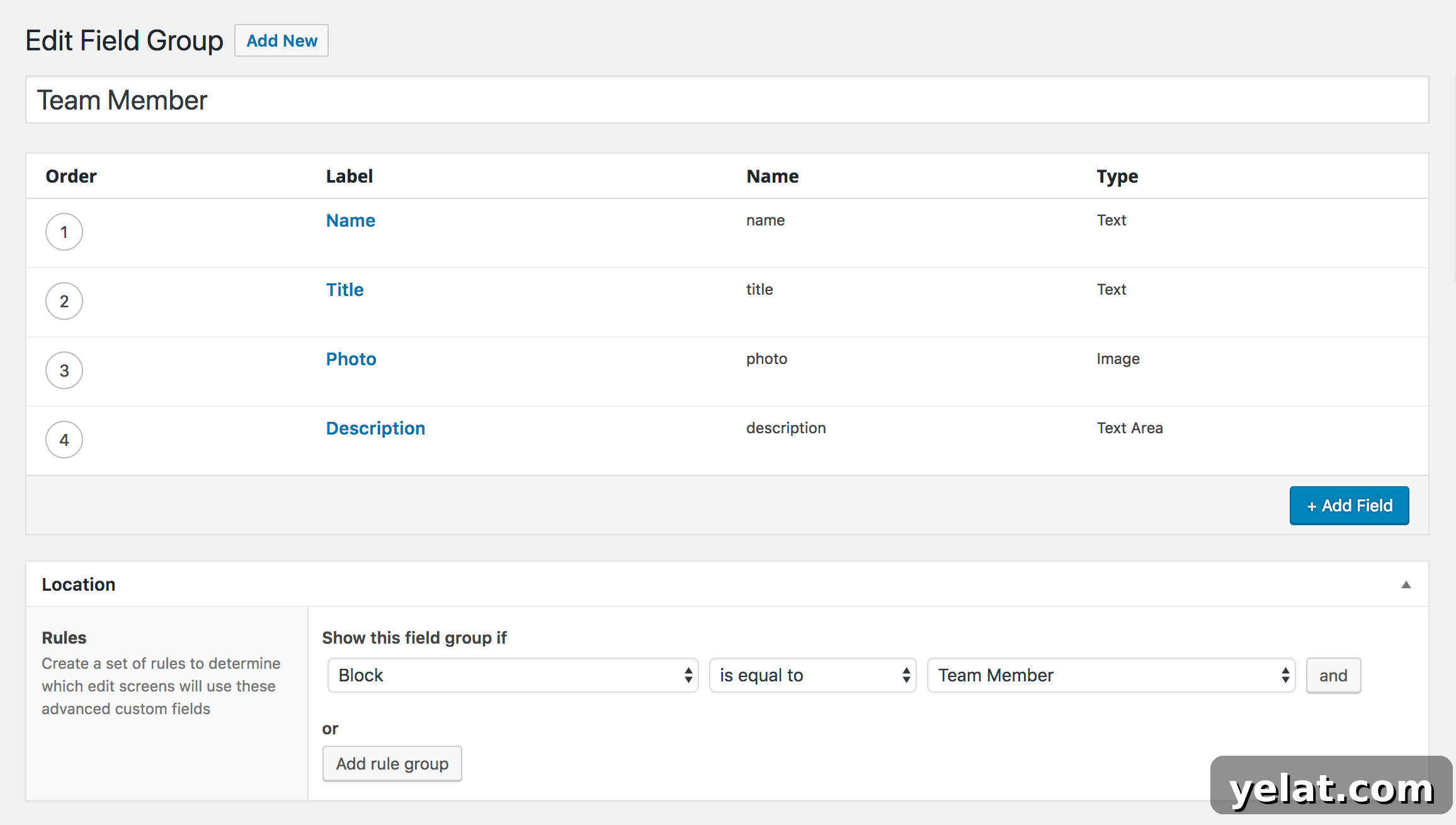
After registering the block, create its editor fields in ACF. This is done like any other ACF field group: add the fields you need and set the location rule to “Block is equal to Team Member”. The ACF fields become the block’s editable controls in the editor.
Build the block markup
Finally, write the PHP markup that renders the block. Place a template partial such as /partials/block-team-member.php and match it to the render_template parameter used when registering the block. Example template:
';
echo '';
if( ! empty( $photo ) )
echo wp_get_attachment_image( $photo['ID'], 'thumbnail', null, array( 'class' => 'team-member--avatar' ) );
if( ! empty( $name ) )
echo '' . esc_html( $name ) . '
';
if( ! empty( $title ) )
echo '' . esc_html( $title ) . '
';
echo '';
echo '' . apply_filters( 'ea_the_content', $description ) . '';
echo '';Use get_field() to retrieve values from the block’s ACF fields and build the markup according to your design. The same template serves both backend preview and frontend output.
Building a Table of Contents block
Another useful example is a Table of Contents block that dynamically lists all h2 headings in the current post and links to them. The author built a custom solution by forking an existing plugin and adapting it for block usage.
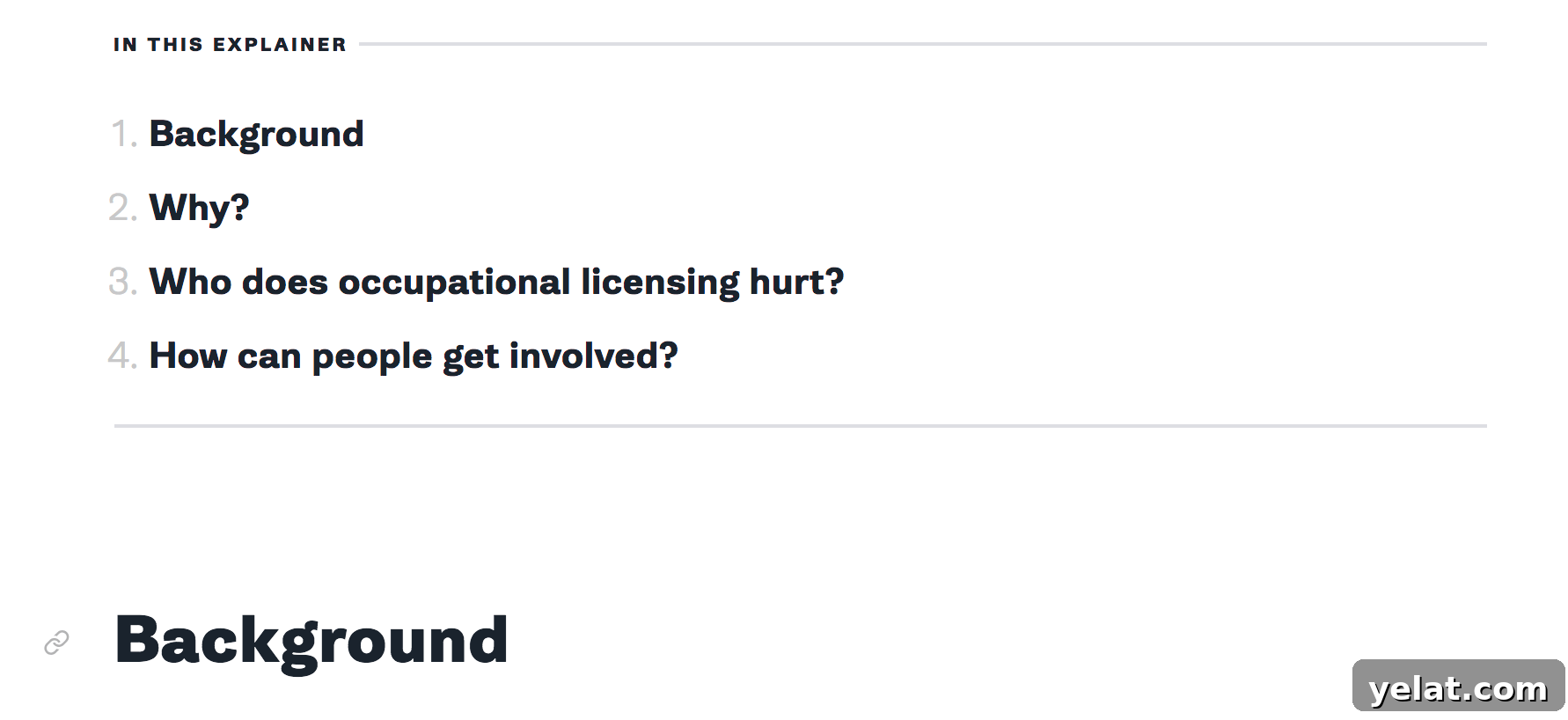
Key improvements included limiting extraction to h2 elements, running the logic only on posts that include the Table of Contents block, respecting pre-existing heading IDs rather than overwriting them, and providing a parameter to list a limited number of headings for use on archive pages or the homepage.

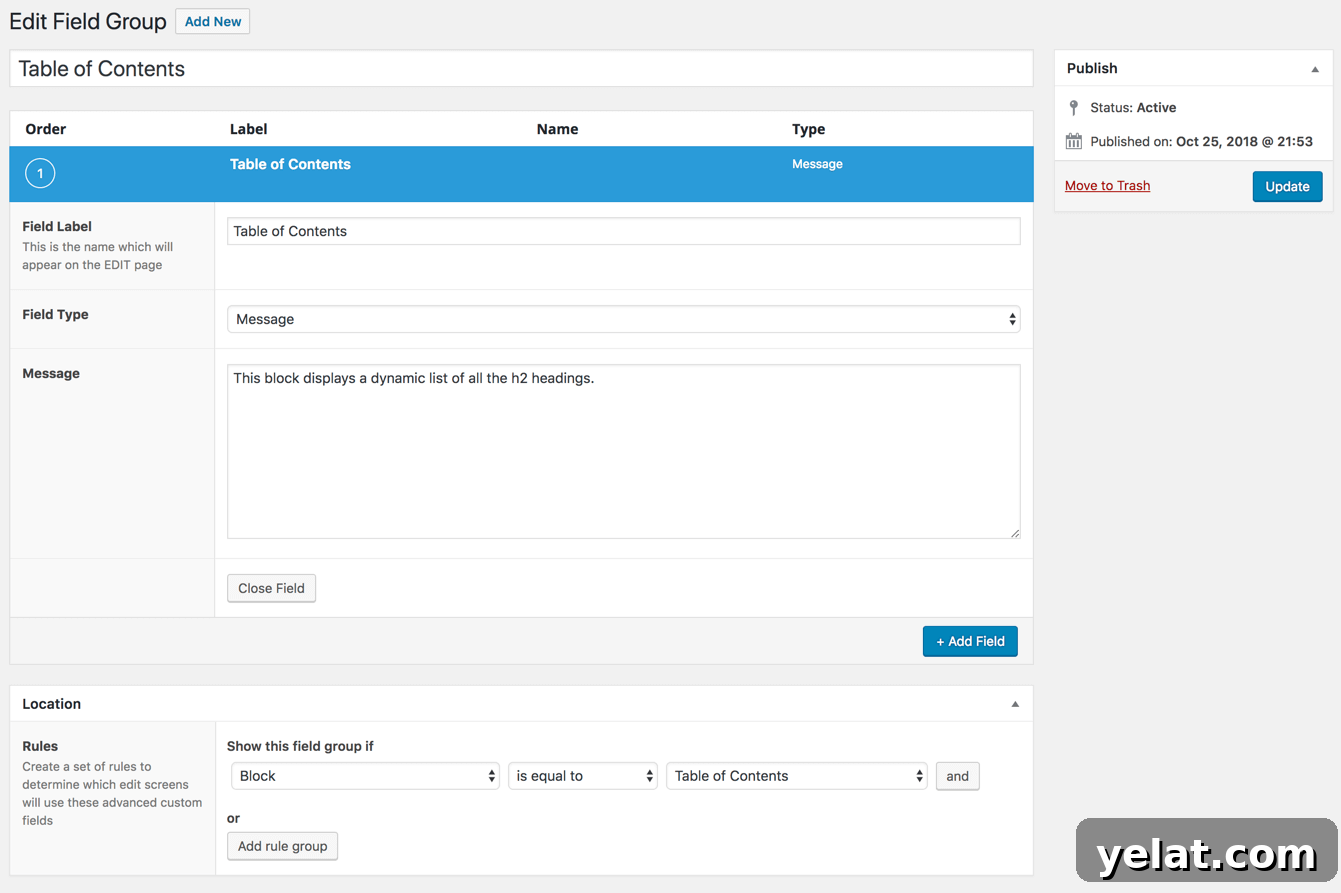
The block itself required no editable fields, so the author added a Message field in ACF to explain how the block works to editors.
The full code for the Table of Contents block is available from the original author for reference when implementing similar functionality.